TLDR:
Skip to the URL List, include those in your ZScaler SSL/TLS Inspection Policy to bypass inspection. That’s it. End of story.
Intro Link to heading
In my day job, I work on the corporate side of IT Security, which, among other things, means I get to play around with big expensive tools that I could never afford to use on my own. This post came about because one tool kept breaking another one that I desperately wanted to try out.
Once I figured it out, I decided to leave a public record of the fix.
XDR Live Response Link to heading
If you are a large corporate customer and have a need for a fully-integrated security solution, you will probably end up with something like Microsoft XDR or Crowdstrike.
These product suites have many different capabilities and features, certainly too many to list here, and I’m not a salesperson anyway, so I will stick to the one that mattered to me in this case, which is the Live Response feature of XDR.
When I first stumbled upon it in the XDR Portal and dug a little into the documentation, it was obvious that this is an extremely powerful tool to have.
1Live response gives security operations teams instantaneous access to a device (also referred to as a machine) using a remote shell connection.

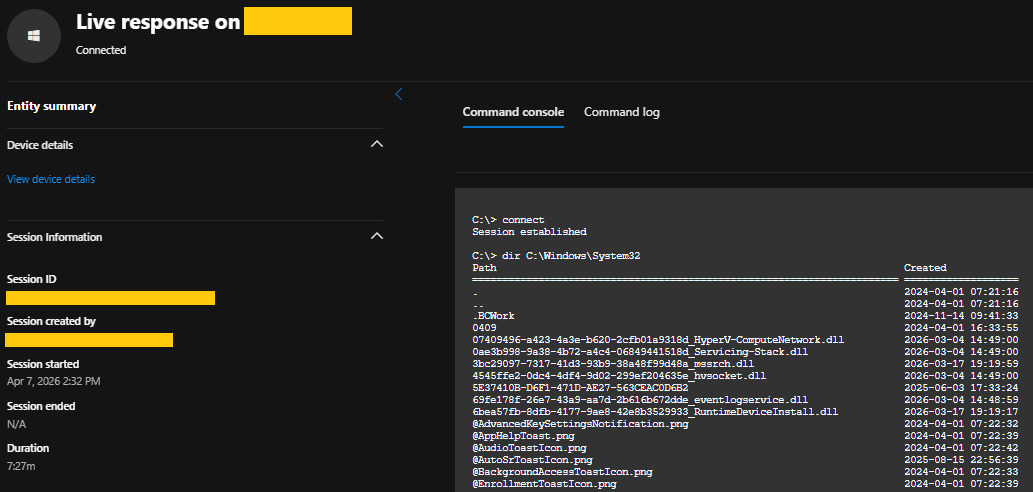
All dreamy-eyed, I searched for my own corporate laptop in the portal, pressed the ... button, hit Initiate Live Response, and was met with a disappointing message: The device network settings prevented upload/download of files. Hmmm.
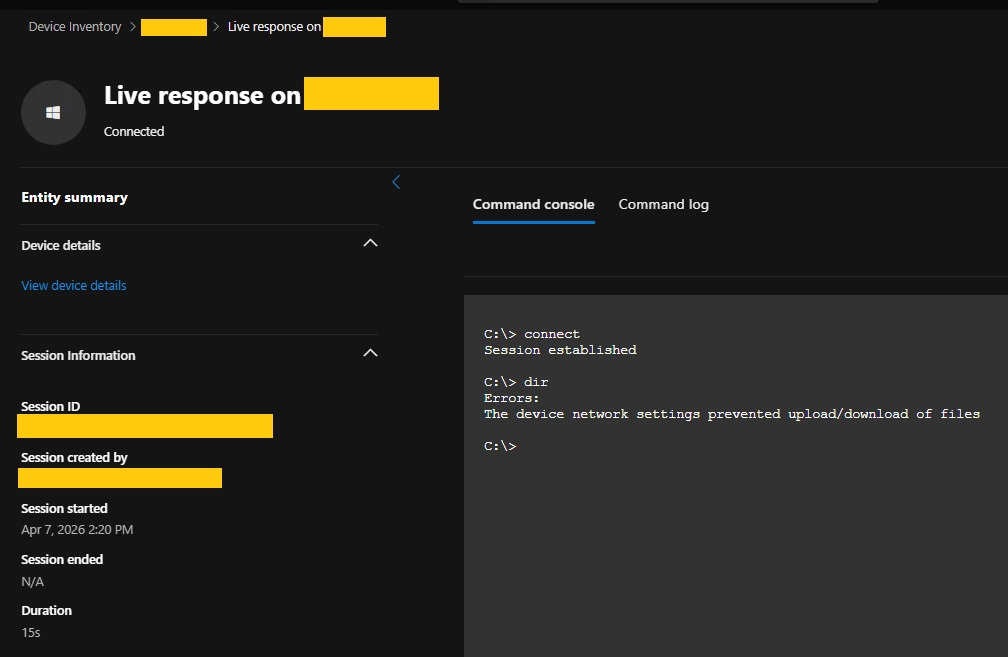
It was immediately obvious that something was blocking the connection. Judging by the title of this post, you likely guessed the culprit already. Once I turned off the ZScaler Client Connector (ZCC), more specifically the ZIA Feature, it worked flawlessly.
ZScaler Bypass Link to heading
A google search quickly let to a proposed fix.
Just exclude the executable responsible for the connection and handling of the XDR capabilities from your ZScaler traffic. ZScaler provides a way for application-based bypasses as described here.
This sounded simple enough so I went ahead and bypassed all traffic based on the path
1C:\Program Files\Windows Defender Advanced Threat Protection\SenseIR.exe
from going through the ZScaler traffic inspection. While this sounds kind of sketchy at first (what would happen if an attacker manages to replace the executable with their own ?), there are various protections in place that go beyond simple NTFS permissions on the folder.
This did not work out and neither did any of the other options for bypassing application-specific traffic (based on certificate fingerprints or hashes of the file for example). I still have no clue why and did not test it further.
Desperate for a fix, I opened a ticket with ZScaler and soon enough found myself in a call with a support person who quickly understood what I wanted and had heard of this feature before.
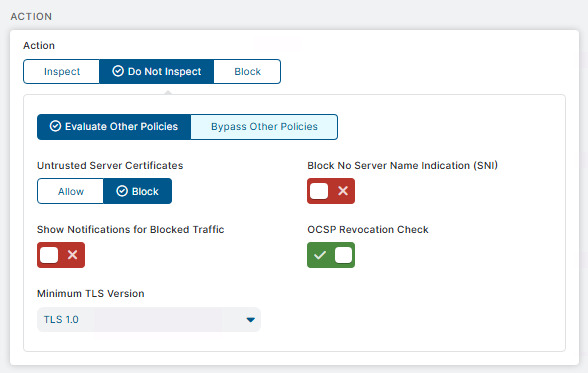
The solution, according to them, was to configure a bypass rule in the SSL/TLS Inspection Policy.
As you can imagine, there are a lot of things you can configure in such policy and I won’t go into too much detail here but you can see their help page here.
The person in the call was helpful enough to give me a list of URLs I needed to bypass in order for the Live Reponse feature to work. The problem was that the list was around 100 entries long and contained entries like
While not immediately obvious, this is bad news. Are you seriously telling me that for this to work, I need to NOT inspect every public blob storage on the internet ???
As I wasn’t about to carelessly grant sweeping access to vast swaths of the internet, I know I needed to bring this list down by a lot. Since testing was (thankfully) easy and responsive (a Update Policy in the ZCC was enough to pull the new settings) I was quickly able to discard a lot of URLs from the list.
At one point, I had managed to get a connection working but wasn’t able to actually upload or download files, which is really the core feature of this. Further testing then confirmed that I had missed a bunch of URLs I had previously deleted.
To make a long story short, this was the list of URLs that actually ended up being bypassed. For convenience, I plugged them into their own URL category and added that to the SSL/TLS Inspection rule as an exclusion criterion. The policy itself skips inspection but still processes other rules in the framework.
URLs Link to heading
 1*.wns.windows.com
 2automatedirstrprdaue.blob.core.windows.net
 3automatedirstrprdaus.blob.core.windows.net
 4automatedirstrprdcus.blob.core.windows.net
 5automatedirstrprdcus3.blob.core.windows.net
 6automatedirstrprdeus.blob.core.windows.net
 7automatedirstrprdeus3.blob.core.windows.net
 8automatedirstrprdneu.blob.core.windows.net
 9automatedirstrprdneu3.blob.core.windows.net
10automatedirstrprduks.blob.core.windows.net
11automatedirstrprdukw.blob.core.windows.net
12automatedirstrprdweu.blob.core.windows.net
13automatedirstrprdweu3.blob.core.windows.net
14winatp-gw-aue.microsoft.com
15winatp-gw-aus.microsoft.com
16winatp-gw-cus.microsoft.com
17winatp-gw-cus3.microsoft.com
18winatp-gw-eus.microsoft.com
19winatp-gw-eus3.microsoft.com
20winatp-gw-neu.microsoft.com
21winatp-gw-neu3.microsoft.com
22winatp-gw-uks.microsoft.com
23winatp-gw-ukw.microsoft.com
24winatp-gw-weu.microsoft.com
25winatp-gw-weu3.microsoft.com
26wseu1northprod.blob.core.windows.net
27wseu1westprod.blob.core.windows.net
28wsuk1southprod.blob.core.windows.net
29wsuk1westprod.blob.core.windows.net
30wsus1eastprod.blob.core.windows.net
31wsus1westprod.blob.core.windows.net
32wsus2eastprod.blob.core.windows.net
33wsus2westprod.blob.core.windows.net
With this in place, I was able to actually use Live Response 🙂